A smart bulb not connecting to Wi-Fi is one of the most annoying smart home problems because the fix is rarely obvious. The bulb powers on, the app just spins, and nothing happens. Before you toss the bulb in a drawer or buy a replacement, know this: most connection failures come down to a handful of causes — the wrong Wi-Fi band, a stale network cache, or a botched setup step — and you can fix all of them in minutes.
This guide starts with a 60-second checklist to try first, then walks through seven fixes in the order worth attempting them, from the most common culprit to the last resort. These steps work for Wi-Fi smart bulbs from Philips Hue (Wi-Fi models), TP-Link Tapo and Kasa, Govee, Wyze, LIFX, and most other brands that connect directly to your router.
Try This First: The 60-Second Checklist
Run through these before anything else — they clear up a surprising number of “smart bulb won’t connect” cases:
- Confirm the bulb is actually powered. The wall switch has to be ON, and the lamp’s own switch (if it has one) too. A smart bulb with no power can’t enter pairing mode.
- Stand near the router during setup. Move the lamp within a few meters of the router just for pairing — you can move it back afterward.
- Check that your phone is on the same network. Plenty of apps need your phone on the 2.4GHz band during setup — not 5GHz, and not mobile data.
- Force-close and reopen the bulb’s app. Stuck setup wizards are common; a fresh launch often clears the error.
- Toggle your phone’s Wi-Fi off and back on. This clears stale DHCP leases that can block the handshake.
If the bulb still won’t connect, work through the seven fixes below in order.
Fix 1: Switch to the 2.4GHz Wi-Fi Band
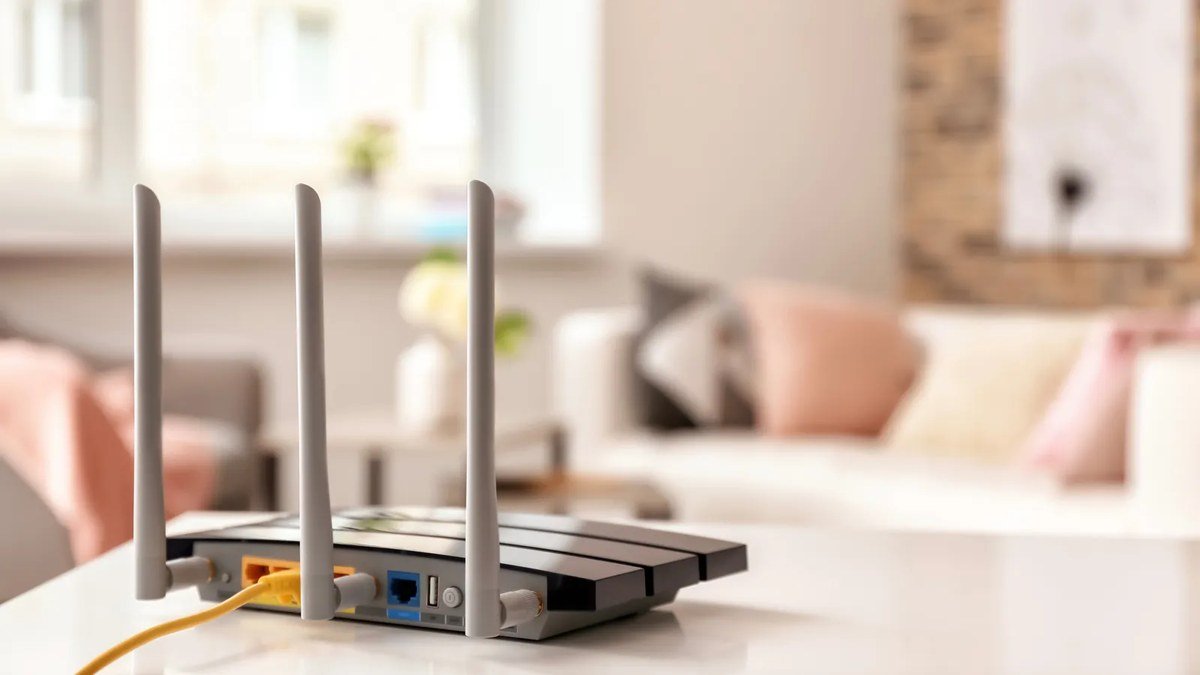
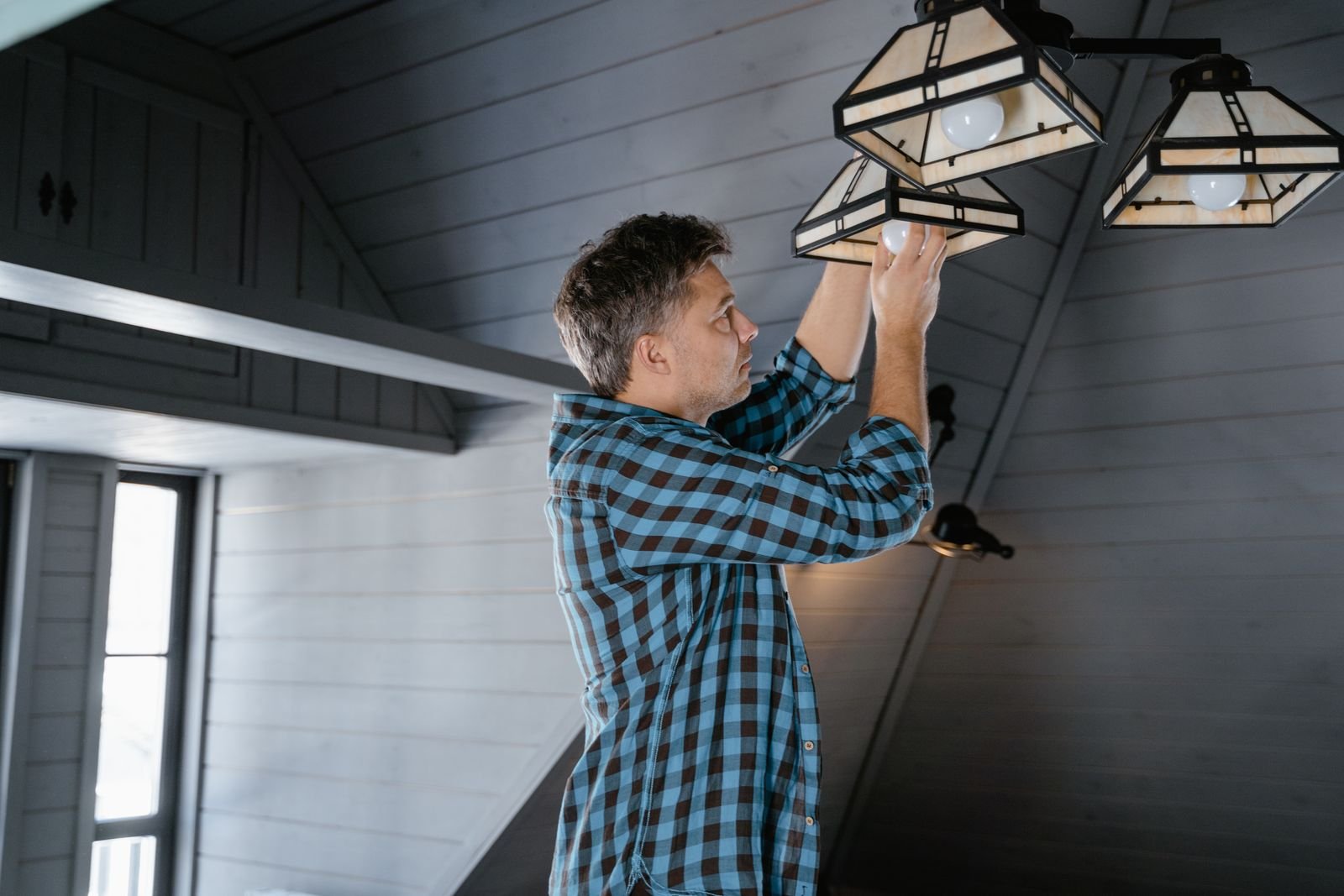
This is the number one reason a smart bulb won’t connect, by a wide margin. Almost all Wi-Fi smart bulbs only support the 2.4GHz band — they physically can’t see 5GHz networks — while modern phones and routers default to 5GHz. If your phone is on 5GHz during setup, the app may try to hand the bulb 5GHz credentials it can’t use, and pairing fails without telling you why.
What to do: open your router’s admin page or app and check whether the 2.4GHz and 5GHz networks share one name (SSID). If they do, temporarily split them into two names (e.g. “Home” and “Home-5G”) or switch off the 5GHz band while you set up. Put your phone on the 2.4GHz network, then run the bulb’s pairing process. Once the bulb connects, you can re-enable 5GHz and move your phone back — the bulb will stay happily on 2.4GHz. Some newer bulbs and apps handle band steering on their own, but when in doubt, forcing 2.4GHz during setup is the fix that works.
Fix 2: Restart the Router and the Bulb
The classic “turn it off and on again” earns its reputation here. Routers build up stale device tables over time, and a smart bulb that connected before (or half-connected) can get stuck in a limbo where the router keeps refusing its handshake.
Unplug your router from power for a full 30 seconds — not a quick reboot from the app, a real power cycle — then plug it back in and wait until it’s fully online (usually 1–2 minutes). While you wait, unscrew the smart bulb or switch it off at the wall for 30 seconds, then power it back on. Once both are up, retry pairing. This wipes out DHCP conflicts, stale ARP entries, and half-remembered device registrations in one move, and it fixes a big share of bulbs that “suddenly stopped connecting.”
Fix 3: Factory-Reset the Bulb
If the bulb paired before — or a previous setup attempt died halfway — its stored Wi-Fi credentials may be corrupt. A factory reset wipes them and drops the bulb back into pairing mode. The reset method varies by brand, but the most common pattern is a power-cycle sequence: switch the bulb off and on 3 to 5 times in quick succession (about a second on, a second off). Most bulbs confirm the reset by flashing, pulsing, or cycling through colors.
Check your brand’s support page for the exact sequence — TP-Link Tapo/Kasa, Govee, Wyze, and Philips all publish theirs, and they differ slightly. After the reset confirmation, the bulb should show up in the app’s “add device” flow as a new device. If it won’t enter pairing mode after two tries, experiment with a slightly slower or faster rhythm; timing is usually the culprit.
Fix 4: Check App Permissions and Update Firmware
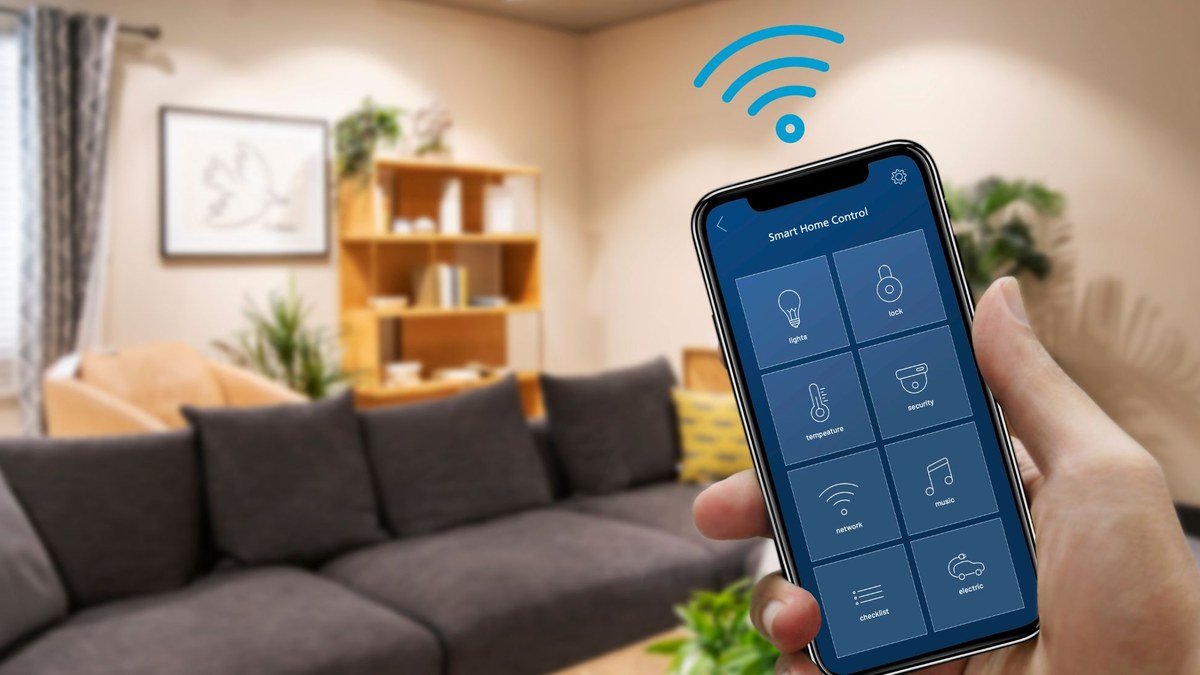
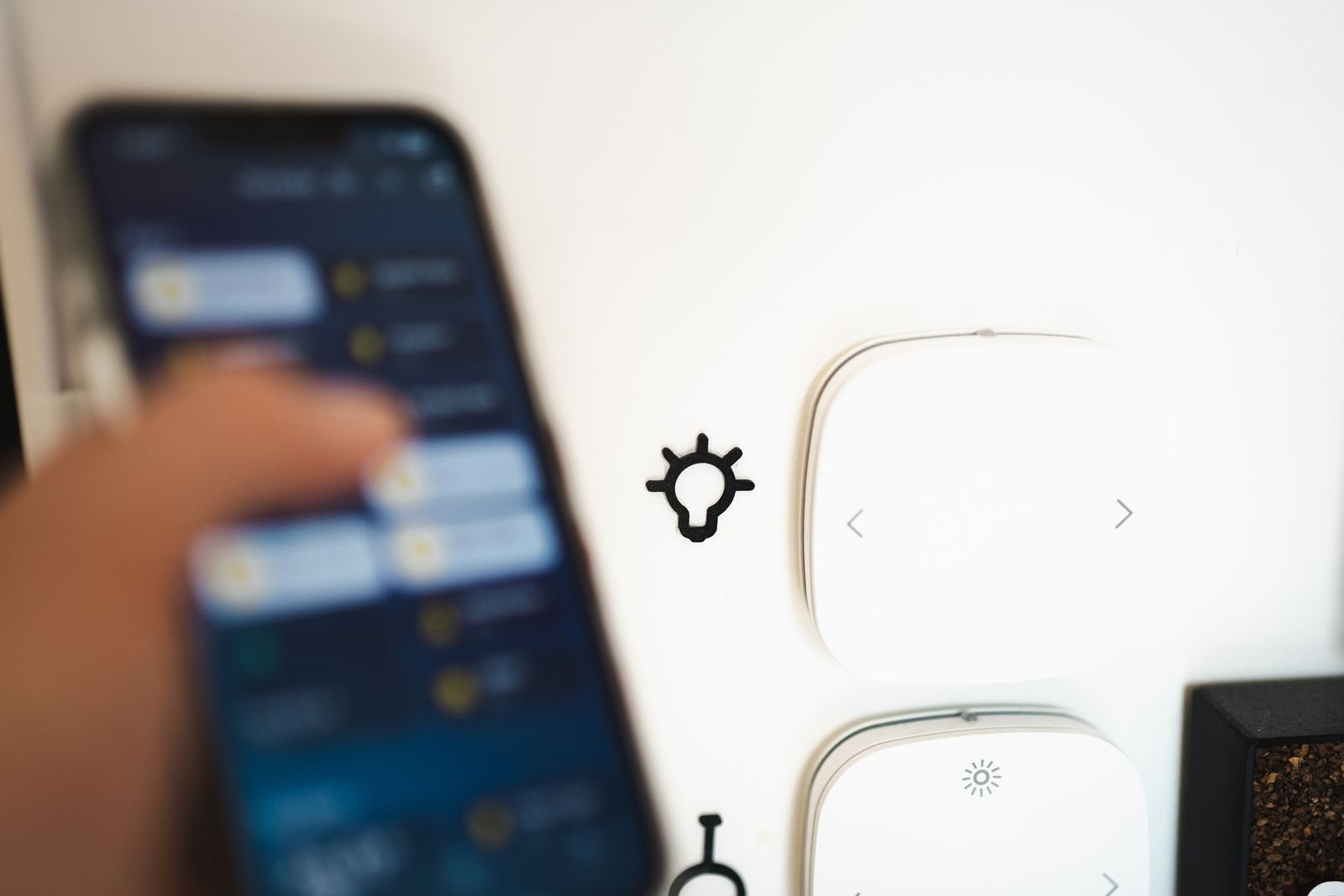
Modern phones gate exactly the permissions smart home apps need. On Android and iOS alike, the bulb’s companion app typically needs location permission (used to scan for nearby Wi-Fi devices — not to track you) and local network access. Deny either one during install and pairing can die at the device-discovery step. Head into your phone’s settings, find the app, grant both permissions, and try again.
Then update everything: the companion app itself, your phone’s OS, and — if the bulb connects at all, even briefly — the bulb’s firmware through the app. Manufacturers patch pairing bugs all the time; a bulb running two-year-old firmware can fail against a modern router’s security settings. Also double-check you’re using the right app for your exact model — brands like TP-Link split devices across the Tapo and Kasa apps, and the wrong one guarantees failure.
Fix 5: Move the Bulb Closer to the Router
Smart bulbs have tiny, low-power Wi-Fi antennas — far weaker than your phone’s. A bulb that works fine in the living room can fail to connect in a far bedroom, garage, or outdoor fixture simply because the signal is too weak for the initial handshake, which needs a stronger signal than everyday operation does.
For setup, screw the bulb into a lamp near the router and pair it there. Once it’s paired and working, move it to its final spot and confirm it stays responsive in the app. If it drops offline there, the location genuinely has poor coverage — consider a Wi-Fi extender, a mesh node, or a more central spot for the router. Rule of thumb: if your phone shows one bar of Wi-Fi where the bulb lives, the bulb will struggle.
Fix 6: Too Many Devices? Check DHCP and Network Limits
This one surprises people. Plenty of ISP-provided routers ship with a small DHCP pool — sometimes just 32 or 50 addresses — and a modern smart home can quietly burn through it: bulbs, plugs, cameras, speakers, TVs, and phones add up fast. When the pool is full, a new bulb can’t get an IP address and pairing fails at the very last step.
Log into your router’s admin page and look at the connected-devices list and the DHCP range. If the list is long, expand the pool (say, from 50 to 100 addresses), or give the bulb a static IP outside the pool. Also look for “client limits” or “smart connect” features that throttle IoT devices, and make sure MAC address filtering is off unless you’re deliberately using it. If you’re running 30+ smart devices on a basic ISP router, this fix — or a router upgrade — may sort out not just this bulb but a whole family of flaky smart home devices.
Fix 7: The Bulb Itself May Be Dead
If you’ve worked through fixes 1 through 6 and the bulb still won’t connect — no pairing mode, no flashing on reset, no appearance in the app — the hardware may have failed. Smart bulbs die in two common ways: the LED driver fails (the bulb doesn’t light at all) or the Wi-Fi module fails (the bulb lights normally from the wall switch but never enters pairing mode and never appears in the app).
Test it properly: try the bulb in a different lamp in a different room, and pair with a second phone if one’s available. If it behaves identically everywhere, it’s the bulb, not your network. Check the warranty — reputable brands typically cover 1–2 years — before buying a replacement. And if you’re replacing it anyway, consider whether a newer smart light model with better radios would serve the spot more reliably.
When to Replace vs. Keep Troubleshooting
Stop troubleshooting and replace the bulb when: it shows no signs of life in any socket; it lights up but never enters pairing mode after multiple documented reset attempts; it connects but drops offline within minutes in a spot with strong Wi-Fi; or it’s out of warranty and you’ve already spent more than 30 minutes on fixes. One replacement bulb costs less than an hour of frustration is worth.
Keep troubleshooting when: the bulb worked before and stopped after a router change, power outage, or app update (that points to configuration, not hardware); multiple bulbs failed at once (that points to the router or network); or the bulb enters pairing mode but fails at the same step every time (that points to a specific, fixable cause like the 2.4GHz band or app permissions). One more scenario worth ruling out: if your whole smart home has gone flaky, the router — not the bulb — is usually the bottleneck, and a smart speaker with a built-in hub or a mesh Wi-Fi upgrade may steady everything at once.
FAQs: Smart Bulb Not Connecting
Why won’t my smart bulb connect to 5GHz Wi-Fi?
It’s not supposed to. Nearly all Wi-Fi smart bulbs ship with only a 2.4GHz radio — 2.4GHz travels farther and punches through walls better, which is what a bulb needs, and the cheaper radio keeps prices down. Put your phone on the 2.4GHz band during setup and the bulb will pair normally. Your phone can go back to 5GHz afterward.
How do I reset a smart bulb that won’t connect?
The most common method is power-cycling the bulb 3–5 times (about a second off, a second on) until it flashes or cycles colors — that’s the pairing-mode signal. Exact sequences vary by brand, so check the manufacturer’s support page for your model. After the reset, add it as a new device in the companion app rather than trying to revive the old entry.
Why does my smart bulb keep disconnecting after it connects?
Repeated dropouts usually mean weak Wi-Fi where the bulb sits, an overcrowded 2.4GHz band, or DHCP pool exhaustion on the router. Try a static IP reservation for the bulb, move the router or a mesh node closer, and check the router’s device limit isn’t maxed out. Bulbs that disconnect only at certain times of day are often victims of peak-hour network congestion.
Do smart bulbs work without internet?
Most Wi-Fi smart bulbs need your local Wi-Fi network to work through the app, and most need the internet for remote control, voice assistants, and automations. Some support local LAN control without internet, but cloud-dependent features go dark. If you want lighting that survives internet outages, look at locally-controlled setups like the ones in our guide to a cloud-free smart home.
Can a VPN or ad-blocker break smart bulb setup?
Yes. A VPN routes your phone’s traffic off the local network, which breaks the local device discovery that pairing depends on. Private DNS or aggressive ad-blocking can also interfere with the app’s setup servers. Switch off your VPN and any private-DNS or ad-blocking profiles during pairing, then turn them back on afterward.
The Verdict
A smart bulb that won’t connect is almost never a mystery — it’s a 2.4GHz band mismatch, a stale router cache, a missed app permission, or a bulb that needs a factory reset, in roughly that order of likelihood. Work the fixes in sequence, give the 60-second checklist an honest shot first, and resist buying a replacement until the bulb has failed the “different lamp, different phone” test. In day-to-day use, nine out of ten “dead” smart bulbs come back to life somewhere between Fix 1 and Fix 4 — and the tenth was genuinely ready for retirement.
Affiliate Disclosure: This article contains affiliate links. If you purchase through them, we may earn a commission at no extra cost to you.
Where to Buy: Check Price on Amazon · See Amazon Deals · Compare Prices on Daraz · Check Daraz Deals · Check AliExpress Price · See AliExpress Deals
Check the price on AliExpress — the global marketplace with millions of tech products.
As an AliExpress affiliate, we may earn a commission on qualifying purchases.