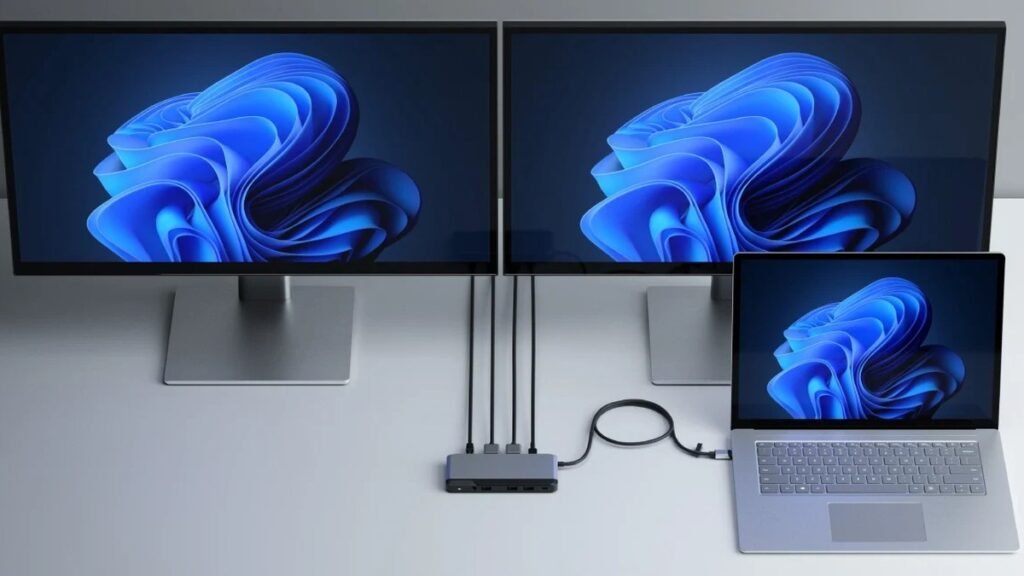
Best USB-C Docks 2026: 5 Picks to Turn Your Laptop Into a Workstation
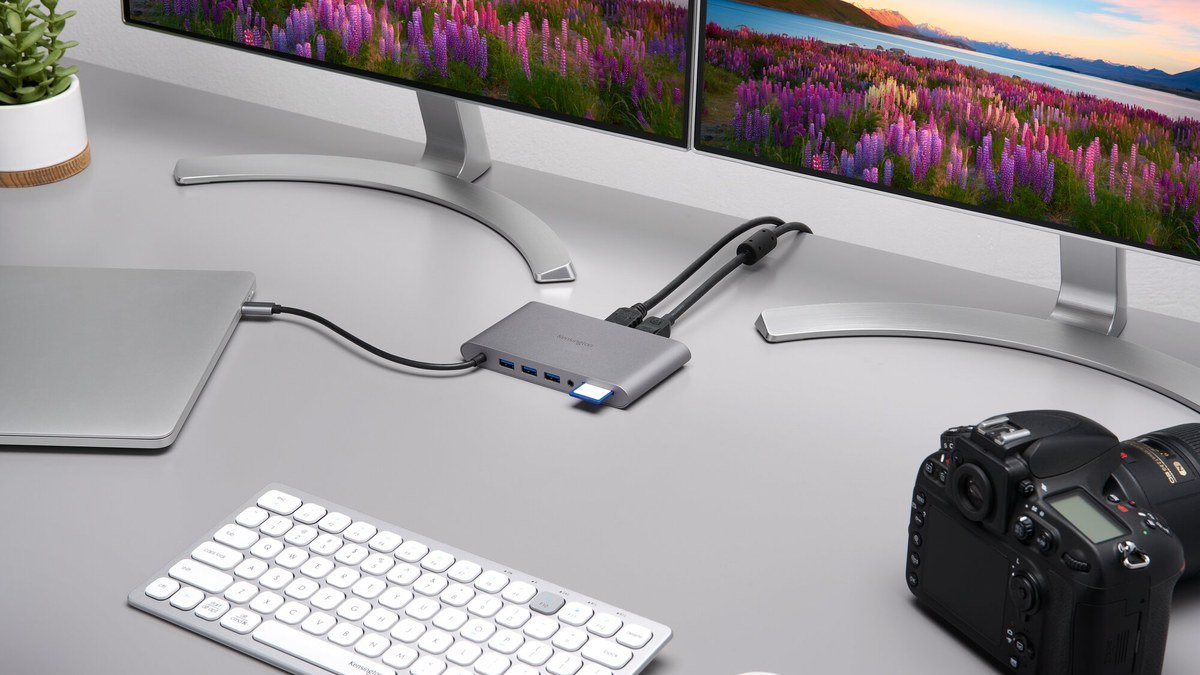
The best USB-C dock is the closest thing to a magic trick in home-office tech: one cable from your laptop, and suddenly you have dual monitors, gigabit ethernet, keyboard and mouse, an SD card reader, and 85W+ charging — then one unplug and you’re mobile again. In 2026, docks are reliable workhorses with clear price tiers. We compared this year’s leading USB-C and Thunderbolt docks to find the five worth buying.
Best USB-C Docks: Quick Comparison
Here’s how our five picks stack up.
| Dock | Key spec | Price | Best for |
|---|---|---|---|
| Anker 575 (13-in-1) | 13 ports, 85W charging, triple display | ~$199 | Best overall USB-C dock |
| CalDigit TS4 | 18 ports, Thunderbolt 4, 98W charging | ~$320 | Best Thunderbolt 4 dock |
| Baseus 11-in-1 | 11 ports, 100W pass-through, dual 4K | ~$49.99 | Best budget dock |
| Dell WD19S 180W | 180W power, triple display, 130W to laptop | ~$199 | Best for business laptops |
| Satechi USB4 Pro Dock | USB4 40Gbps, dual 4K@60Hz, 96W charging | ~$299 | Best for Mac users |
1. Anker 575 USB-C Docking Station (13-in-1) — Best Overall USB-C Dock
The Anker 575 is the best USB-C dock for most people in 2026 because it gets the fundamentals right. Thirteen ports cover everything: 85W laptop-charging USB-C, 18W phone fast-charging, USB-C data, three USB-A, dual HDMI plus DisplayPort for triple displays, gigabit Ethernet, SD/microSD readers, 3.5mm audio, and DC power in. It stands vertically to save desk space, with a power button to shut everything down.
Real-world reliability is Anker’s edge — the 575 runs cooler than rivals and has years of firmware refinement. 85W charging covers nearly every ultrabook and 14-inch laptop, and triple 1080p display support handles serious multitasking. At around $199 (frequently $140–$170 on sale), it’s the dock we recommend for any one-cable desk. Pair it with a 4K work monitor and your laptop finally feels like a desktop.
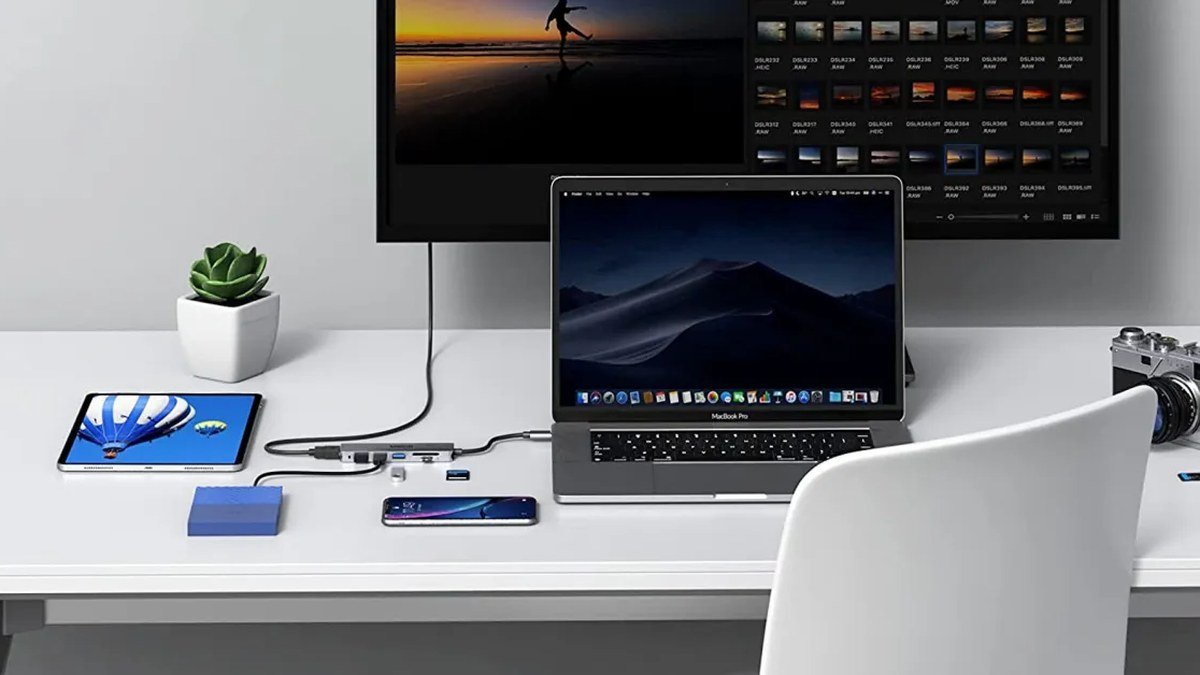
Specs: 13 ports total | 85W laptop charging + 18W phone charging | 2× HDMI + 1× DisplayPort (triple 1080p) | 10Gbps USB-C data | Gigabit Ethernet | SD/microSD UHS-I | 18-month warranty
Pros: Complete port selection; reliable and cool-running; vertical space-saving design; frequent sale prices; great Anker support.
Cons: Not Thunderbolt (10Gbps max); triple display limited to 1080p; macOS mirrors displays (no extended triple).
2. CalDigit TS4 — Best Thunderbolt 4 Dock
If your laptop has Thunderbolt 4 and you want zero compromises, the CalDigit TS4 is the undisputed champion — 18 ports, and the dock by which all others are judged. The front gives you USB-C, USB-A, SD/microSD UHS-II readers, and a combo audio jack; the back adds three Thunderbolt 4 ports, three USB-C, five USB-A, DisplayPort 1.4, 2.5Gb Ethernet, and 98W charging. It drives dual 6K displays or a single 8K monitor.
What justifies the ~$320 price is bandwidth and build: 40Gbps Thunderbolt means external SSDs run at full speed while driving multiple high-res displays — something USB-C docks can’t do. CalDigit’s firmware support is legendary, with updates adding features years after purchase. Creative pros running external NVMe storage alongside dual 4K monitors should consider this mandatory.
Specs: 18 ports | Thunderbolt 4 (40Gbps) | 98W laptop charging | Dual 6K or single 8K display | 2.5Gb Ethernet | UHS-II SD/microSD | 2-year warranty
Pros: Most ports and bandwidth available; drives extreme display setups; full-speed external SSDs; superb long-term firmware support.
Cons: Expensive; overkill without Thunderbolt 4 laptop; large footprint; no HDMI (DP only).
3. Baseus 11-in-1 USB-C Docking Station — Best Budget Dock
The Baseus 11-in-1 is the dock for everyone who thought docks cost $200. At ~$49.99, you get dual 4K@60Hz HDMI, 100W pass-through charging, three USB-A ports, USB-C data, gigabit Ethernet, SD/microSD readers, and a 3.5mm jack — a port selection that embarrasses docks triple the price. For students, casual remote workers, and second desks, it’s genuinely all most people need.
The compromises are honest: it’s a pass-through hub (your laptop’s charger plugs into the dock, which passes up to 100W through), so efficiency depends on your brick; heavy loads make it warm; long-term reliability doesn’t match Anker or CalDigit. But as a travel dock or first docking station, the value is absurd — a dual-monitor workstation for the price of a pizza night. Toss one in your bag and you’re ready to work anywhere.
Specs: 11 ports | 100W pass-through charging | Dual 4K@60Hz HDMI | 3× USB-A | USB-C data | Gigabit Ethernet | SD/microSD | 3.5mm audio
Pros: Incredible value; dual 4K support; 100W charging; compact and travel-friendly.
Cons: Pass-through charging (needs your brick); runs warm under load; budget build; shorter warranty.
4. Dell WD19S 180W — Best Dock for Business Laptops
Corporate IT departments buy the Dell WD19S by the pallet: it’s the most broadly compatible, most boringly reliable dock in existence. The 180W power supply delivers up to 130W to the laptop — enough for mobile workstations that 90W docks can’t feed — while driving triple displays (2× DisplayPort + HDMI, or via USB-C). Enterprise manageability features (MAC address pass-through, PXE boot, Wake-on-LAN) make IT admins weep with joy.
For home offices, the appeal is simpler: if you have a Dell Latitude, XPS 15/17, or Precision, this is the dock engineered for your machine, with firmware updates through Dell’s own tools. Around $199 puts it in line with the Anker 575 — less elegant (no vertical stand, utilitarian design), but a known quantity with massive deployment. Non-Dell laptops work fine too, minus some Dell-specific power features. It’s the Toyota Camry of docks — high praise.
Specs: 180W PSU, up to 130W to laptop | Triple display (2× DP 1.4 + HDMI) | 3× USB-A, 2× USB-C | Gigabit Ethernet | Enterprise manageability | 3-year warranty
Pros: Powers workstation laptops others can’t; extremely reliable; great Dell integration; 3-year warranty.
Cons: Bulky and utilitarian; best features are Dell-specific; no SD card reader.
5. Satechi USB4 Pro Dock — Best Dock for Mac Users
Mac users live with a special docking frustration: macOS doesn’t support MST, so most USB-C docks extend to only one external display on Apple Silicon. The Satechi USB4 Pro Dock is built for this reality, using USB4’s 40Gbps bandwidth to drive dual 4K@60Hz properly on compatible Macs, with 96W charging, USB-C and USB-A ports, gigabit Ethernet, and UHS-II card readers in Satechi’s signature aluminum unibody.
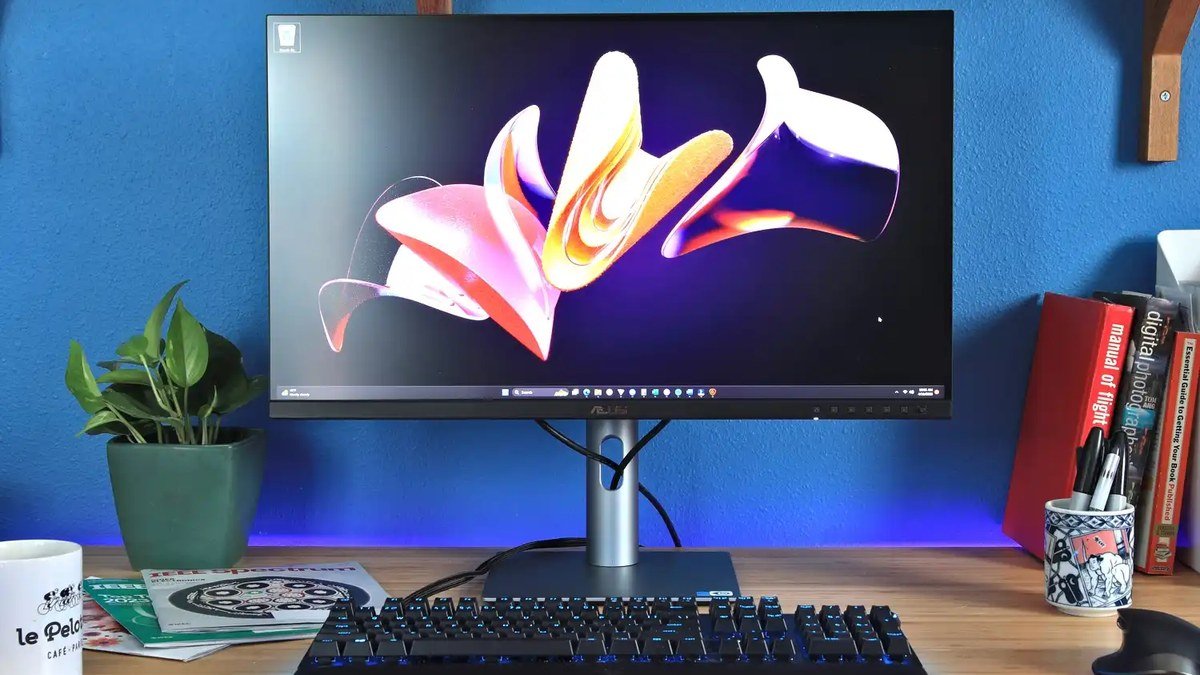
At ~$299 it sits between the Anker and the CalDigit — the sweet spot for MacBook Pro/Air owners: more capable than USB-C docks, less overkill than the TS4, and designed to match Apple hardware. The aluminum chassis doubles as a heat sink. Windows users with Thunderbolt 4 can use it too, though the TS4 offers more ports for the small step up. If your desk centers on a Mac, this is the dock for you — especially paired with the right 4K monitor.
Specs: USB4 40Gbps | Dual 4K@60Hz | 96W charging | USB-C + USB-A ports | Gigabit Ethernet | UHS-II SD/microSD | Aluminum unibody
Pros: Proper dual-display support on Mac; 40Gbps bandwidth; premium aluminum build; matches Apple aesthetics.
Cons: $299 is steep; fewer total ports than TS4; Mac-focused (less value for Windows).
Buying Guide: How to Choose the Best USB-C Dock
First, check what your laptop’s USB-C port supports — the step everyone skips. Your port needs DisplayPort Alt Mode for video and USB Power Delivery for charging. Thunderbolt 3/4/5 ports support everything; plain USB-C varies — check your laptop’s specs. A dock can’t add capabilities your port lacks.
USB-C vs. Thunderbolt: know the difference. USB-C docks (Anker 575, Baseus) top out at 10Gbps — perfect for office work, dual displays, and everyday peripherals. Thunderbolt/USB4 docks (CalDigit TS4, Satechi) offer 40Gbps — needed for dual 4K+ high-refresh displays, 6K/8K monitors, and full-speed external SSDs. Buy Thunderbolt only if your laptop has it and your workload needs the bandwidth.
Count your displays — and check macOS limits. Most USB-C docks support 2–3 displays on Windows via MST. On Apple Silicon Macs, standard USB-C docks mirror rather than extend multiple displays — you need a Thunderbolt/USB4 dock or DisplayLink for dual extended displays. Verify your Mac model’s support before buying.
Match charging wattage to your laptop. Ultrabooks are happy with 65–90W; 15–16″ performance laptops want 90–100W; mobile workstations may need 130W+ (Dell WD19S territory). Underpowered charging means your battery slowly drains under load.
Don’t overlook the little ports. SD/microSD readers matter to photographers; a 3.5mm jack matters if your monitor lacks speakers; 2.5Gb Ethernet matters on fast networks. List everything currently plugged into your laptop — the dock must replace all of it, or you’ll still be plugging things in daily.
Final Verdict
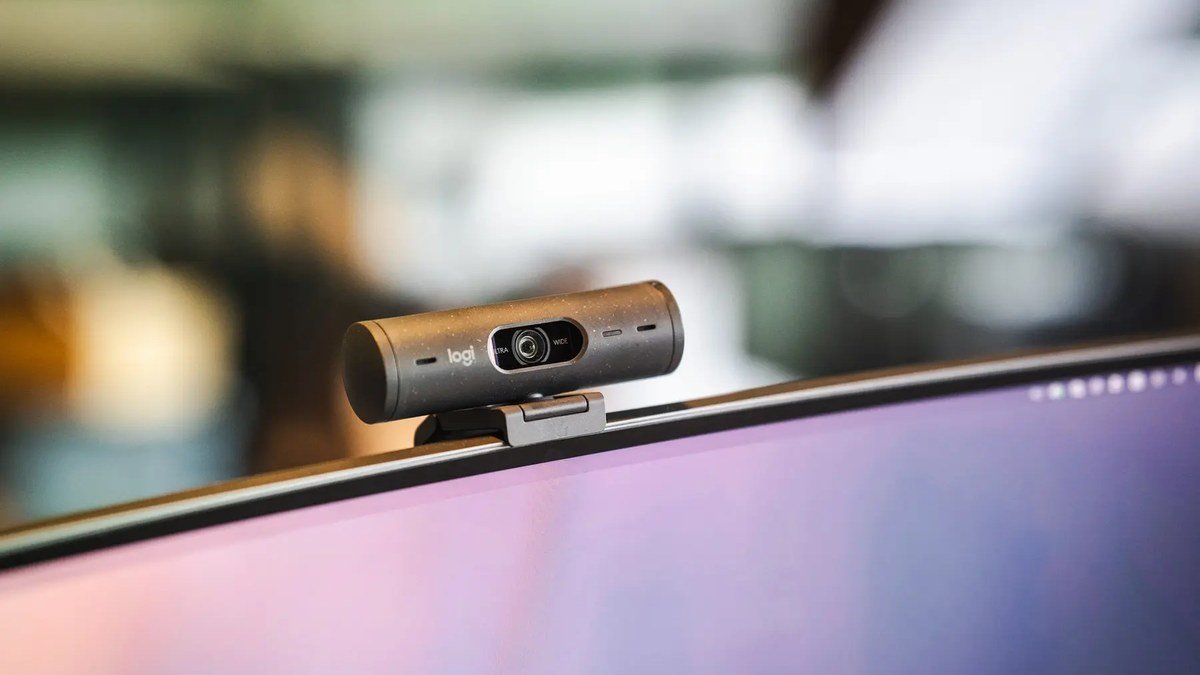
The Anker 575 (~$199) is the best USB-C dock for most people in 2026 — complete ports, reliable performance, frequent discounts. Power users with Thunderbolt 4 should get the CalDigit TS4 (~$320) and never think about docks again. The Baseus 11-in-1 (~$49.99) is the absurd-value budget pick, the Dell WD19S (~$199) is the business workhorse, and Mac users should choose the Satechi USB4 Pro Dock (~$299) for proper dual-display support. Complete the setup with an ergonomic chair and a proper webcam — your home office is officially complete.
Anker 575 13-in-1 USB-C Dock
As an Amazon Associate I earn from qualifying purchases.
Frequently Asked Questions
What does a USB-C dock do?
A USB-C dock expands one USB-C port into many: external monitors, USB ports, Ethernet, SD card readers, and audio — while charging your laptop. One cable connects everything; unplug and you’re mobile again.
Will a USB-C dock work with my laptop?
If your laptop’s USB-C port has DisplayPort Alt Mode (video) and Power Delivery (charging), yes. Thunderbolt 3/4/5 ports work with all docks. A dock can’t add video output to a data-only USB-C port.
Can I connect two monitors to a USB-C dock?
On Windows, yes — most docks here support dual or triple displays. On Apple Silicon Macs, standard USB-C docks can only mirror multiple displays; you need a Thunderbolt/USB4 dock (CalDigit TS4, Satechi USB4 Pro) or DisplayLink for extended dual displays on a Mac.
USB-C dock vs Thunderbolt dock — which should I buy?
Buy a USB-C dock (Anker 575) for office work and standard displays — cheaper and does the job. Buy a Thunderbolt dock (CalDigit TS4) if you have a Thunderbolt laptop and need 40Gbps for high-res multi-monitor setups or full-speed external SSDs.
How much power should a dock deliver to my laptop?
Match or exceed your laptop’s charger: 65W covers most ultrabooks, 85–100W suits 14–16″ laptops, mobile workstations may need 130W+. If the dock under-delivers, your battery slowly drains during heavy use.
What’s the best budget USB-C dock in 2026?
The Baseus 11-in-1 (~$49.99) — dual 4K@60Hz, 100W pass-through charging, Ethernet, and card readers. Step up to the Anker 575 for better thermals and long-term reliability.
A great dock is the invisible backbone of a home office — you stop thinking about cables and just work. Pick the dock that matches your laptop and display ambitions, plug in once, and enjoy the cleanest desk you’ve ever had.
Affiliate Disclosure: This article contains affiliate links. If you purchase through them, we may earn a commission at no extra cost to you.
Where to Buy: Check Price on Amazon · Compare Prices on Daraz · Check Daraz Deals · Check AliExpress Price · See AliExpress Deals
Check the price on AliExpress — the global marketplace with millions of tech products.
As an AliExpress affiliate, we may earn a commission on qualifying purchases.