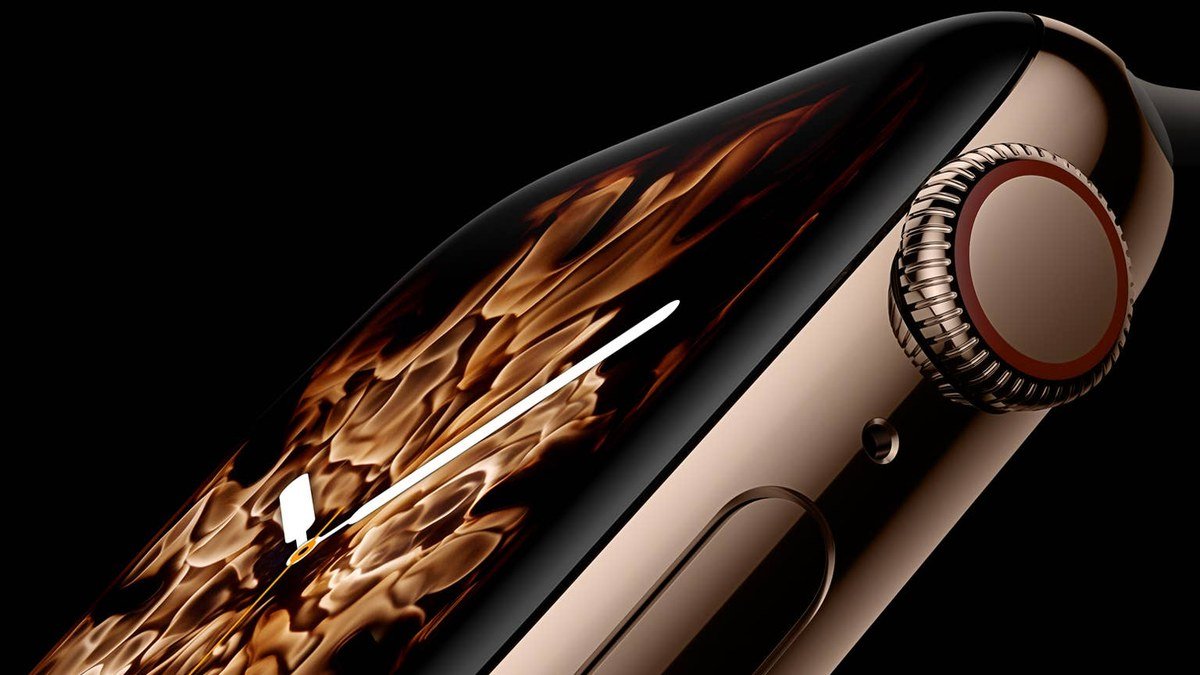
21 Apple Watch Series 12 Tips and Hidden Features Worth Knowing
Most Apple Watch owners use about 20% of what their watch can do. They check notifications, close their rings, maybe track a run — and never touch the settings that would change their daily experience. watchOS 27 buried some of the best stuff three menus deep. I’ve spent months digging through all of it. These 21 tips earned their place, ordered by usefulness — not flashiness.
Heads up: this post contains affiliate links to Amazon, Daraz, and AliExpress — if you buy through them, we may earn a commission at no extra cost to you.
Check Price on Amazon — Apple Watch Series 12
The big ones: do these first
1. Actually set up the Readiness score properly
The Readiness score is the Series 12’s headline feature — a 0-to-10 number built from your sleep, heart rate, and HRV trends that tells you whether to push or rest. But it only works if you feed it data. Wear the watch to bed for at least five nights, and keep it on during the day. After a week, check the Health app on your iPhone each morning before deciding how hard to train. A 4 after a brutal leg day isn’t a suggestion to skip the gym — it’s confirmation your body agrees with you.
2. Turn on wrist temperature insights for sleep
The Series 12 tracks wrist temperature overnight, and watchOS 27 finally makes it useful: open the Sleep app, scroll to your sleep data, and look at the temperature trend line. Consistent drops correlate with deeper sleep for most people. More practically, a sudden deviation from your baseline is often the first sign you’re getting sick — usually a day before you feel it. Open the Health app, search “Wrist Temperature,” and pin it to your favorites so you can glance at it in two taps.
3. Fix your notification firehose
Out of the box, every iPhone app that buzzes your phone also buzzes your wrist. That’s insane. On your iPhone, open the Watch app, go to Notifications, and turn off everything except messages, calls, calendar, and the two or three apps you genuinely need instantly. Your watch should interrupt you maybe a dozen times a day, not two hundred. This single change does more for the Apple Watch experience than any hardware upgrade.
4. Learn the double-tap gesture — then customize it
Tap your index finger and thumb together twice to trigger the primary action in whatever’s open: answer a call, pause music, snooze an alarm, scroll the Smart Stack. Customize it in Settings > Gestures > Double Tap. The killer use: scrolling widgets while your other hand holds a coffee. Or a subway pole. Or a toddler.
Battery and charging smarts
5. Use the 80% charge limit for overnight charging
Settings > Battery > Battery Health > Optimized Charge Limit. Set it to 80%. Lithium batteries degrade fastest when they sit at 100% for hours, and an overnight charge means your watch parks at full for most of the night. Capping at 80% noticeably slows battery aging — over two years, this is the difference between a watch that still makes it through the day and one that dies at dinner. The watch learns your wake time and tops up to 100% before your alarm when it matters.
6. Fast-charge during your morning routine, not overnight
The Series 12 hits roughly 80% in 30 minutes on the included fast charger — older Apple Watch chargers won’t do this, so use the one in the box. The best routine: wear the watch overnight for sleep tracking, drop it on the charger while you shower and eat, put it on at 80%+. You get full sleep data and never think about battery. Overnight charging is for people who don’t sleep-track. You should sleep-track. See tip 1.
7. Low Power Mode is actually good now
Swipe up to Control Center, tap the battery percentage, and toggle Low Power Mode. On the Series 12 it stretches battery to around 38 hours by disabling the always-on display and background heart-rate sampling. The old version felt crippled; this one just feels like a slightly dumber watch. Use it on travel days or whenever you forget your charger. Your workouts still track fine.
Health and fitness power moves
8. Build a custom workout view with the metrics you check
During any workout, the default screens show Apple’s idea of what matters. Open the Watch app on iPhone > Workout > Workout View, and customize each workout type. For running: current pace, heart rate zone, distance, and rolling mile pace on one screen. For strength: heart rate, elapsed time, calories. Stop swiping through four screens mid-set to find the one number you wanted.
9. Set heart rate zone alerts for zone 2 training
Zone 2 cardio — easy effort you could sustain for an hour — is where most fitness gains hide, and most people do it too hard. On the watch: Workout app > tap the three dots next to Outdoor Run > Alerts > Heart Rate > set a custom zone. Your watch taps you when you drift above zone 2. It’s annoying for exactly one week. Then your easy runs get genuinely easy, and your fitness improves faster than it did when every run was a race.
10. Take an ECG the right way
The ECG app needs skin contact with the crown — rest your arm on a table, sit still, and keep your finger on the Digital Crown for the full 30 seconds. Talking, walking, or a loose band produces garbage readings. Do it seated, same time of day, and don’t panic at a single “inconclusive” — that usually means you moved. The Series 12’s denser heart-rate sampling doesn’t replace the ECG; it complements it. Think of continuous HR as the movie and the ECG as the high-resolution still frame.
11. Log medications and get reminded on your wrist
The Medications app on iPhone syncs reminders to the watch. Set it up once in the Health app, and your wrist taps you at dose time with a big “Taken / Skipped” prompt. Logging takes two seconds and builds an adherence record your doctor can actually use. If you take anything daily — vitamins count — this is quietly one of the most valuable things the watch does.
Everyday convenience wins
12. Unlock your Mac and iPhone without lifting a finger
On iPhone: Watch app > Passcode > turn on “Unlock with Apple Watch” for both iPhone (when Face ID is blocked by a mask or sunglasses) and Mac (System Settings > Touch ID & Password > allow your watch). Walk up to your Mac and you’re logged in before you sit down. It feels like a magic trick for about a week, then it just feels normal, and then using anyone else’s computer feels broken.
13. Use the watch as a camera remote
Open the Camera Remote app on the watch: live preview, three-second timer, shutter button. Prop your iPhone on a shelf, frame the group shot from the couch, tap your wrist. No more sprinting back from a self-timer. If you’ve ever balanced your phone on a stack of books for a family photo, this tip alone justifies the watch.
14. Ping your iPhone from Control Center — and make it flash
Swipe up, tap the phone icon, and your iPhone plays a sound. Long-press the same icon and the iPhone’s flash blinks too — perfect for finding it face-down on a dark couch. Everyone knows the basic version; the long-press flash is the part people miss. Use it weekly. Thank me later.
15. Dictate texts instead of typing them
Reply to any message by tapping it and hitting the microphone. Dictation on the Series 12 is fast and surprisingly accurate thanks to the S11 chip’s on-device processing. Speak naturally, say “period” or “question mark” where you need punctuation, and hit Send. It’s genuinely faster than pulling out your phone for anything under three sentences. For longer replies, the scribble keyboard exists — but be honest with yourself, you’re not writing paragraphs on a 46mm screen.
Watch faces and complications that work
16. Stop using pretty faces; use useful ones
The photo faces are lovely and nearly useless. Switch to Modular or Infograph and load it with complications: calendar, weather, activity rings, battery, and one slot for whatever you check most (I use Reminders). A good face answers five questions at a glance without opening a single app. Change faces by long-pressing the current one and swiping — keep two or three in rotation: a data-dense workday face and a minimal evening face.
17. Put the Smart Stack to work
The Smart Stack — the widget carousel you reach by turning the Digital Crown up from the watch face — learns your routine and surfaces timely widgets: weather before your commute, calendar before meetings, workout suggestions in the evening. Pin your most-used widgets to the top by long-pressing them. Most people never open this. It’s the closest thing watchOS has to a personal assistant that actually anticipates you.
Safety and the stuff you hope to never need
18. Set up Medical ID and emergency contacts
iPhone Health app > Medical ID. Fill it in — blood type, allergies, conditions, emergency contacts. Hold the side button on the watch to reach Emergency SOS and your Medical ID. First responders are trained to check wrists. Five minutes of setup for something you pray stays theoretical. Do it today, not “later.”
19. Fall Detection is on by default — check who’s called
Settings > SOS > Fall Detection. It’s enabled automatically if you’re 55 or older; younger users should turn it on manually if they bike, ski, or do anything with gravity involved. More importantly, verify your emergency contacts in the Health app. Fall Detection calling a stranger’s number is worse than useless. Test the countdown screen once so you know what it looks like — you don’t want your first encounter with it to be mid-crisis.
The finishing touches
20. Silence unknown callers on your wrist, not just your phone
iPhone Settings > Phone > Silence Unknown Callers keeps spam off your phone — but the watch follows the phone’s lead, so this quiets your wrist too. Pair it with tip 3’s notification cull and your watch becomes a calm device instead of a slot machine. The goal: your wrist only demands attention when a human you know needs you.
21. Buy a second charger and stop thinking about it
One charger lives on your nightstand. The second lives in your bag or at your desk. Fifteen minutes at your desk adds meaningful battery, and you’ll never do the “watch at 4% before a run” panic dance again. Apple’s official chargers are overpriced — for spares, stands, and bands, AliExpress has solid options for a fraction of Apple’s prices. Shopping from Pakistan? Check Daraz — accessory prices there often beat US listings.
Verdict: the watch rewards the curious
The Series 12 is the rare gadget that gets meaningfully better the more you poke at it. The Readiness score alone is worth the setup week. The notification cull is worth ten minutes. The rest of these tips are small, but they compound — six months from now, the difference between a watch you glance at and a watch that runs parts of your life is exactly this list.
Start with tips 1 through 4 this weekend. That’s maybe 30 minutes total, and it transforms the device. The rest you can pick up one a day, whenever you’re bored in a line somewhere. Your wrist will thank you.
Check Price on Amazon — Apple Watch Series 12
Where to Buy: Compare Prices on Daraz · Check AliExpress Price
Check the price on AliExpress — the global marketplace with millions of tech products.
As an AliExpress affiliate, we may earn a commission on qualifying purchases.